
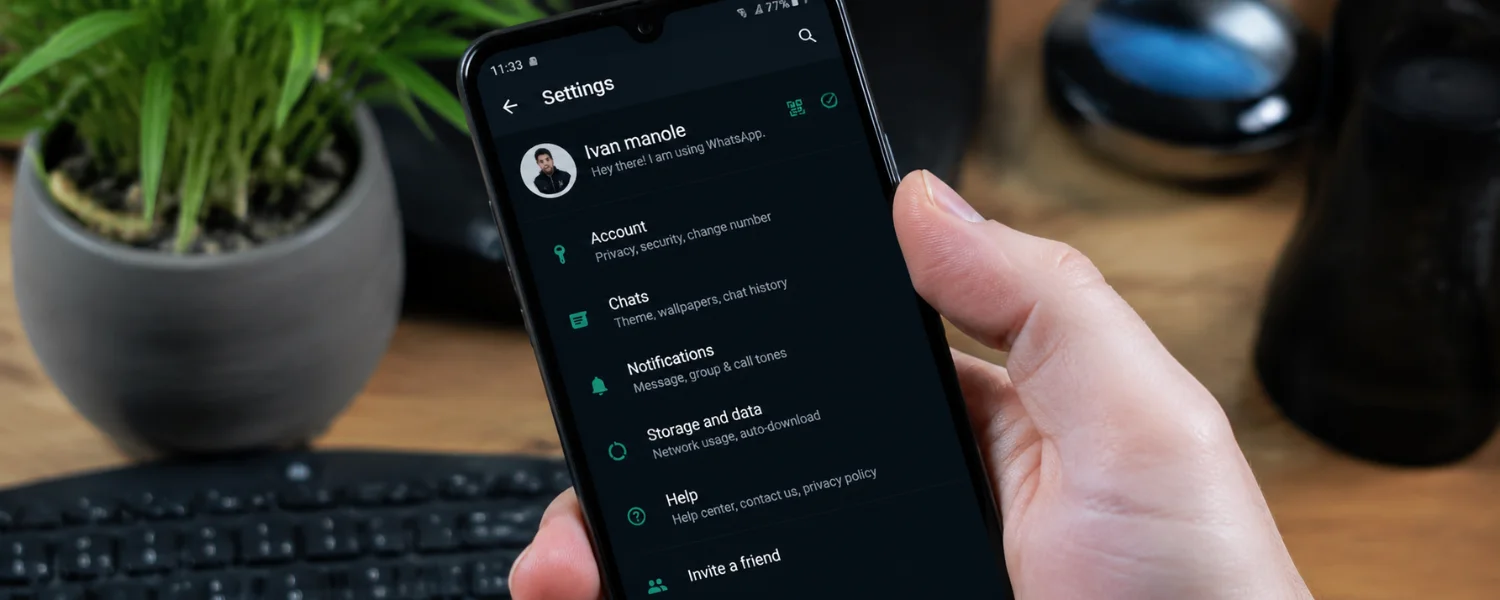
WhatsApp is where family plans, school updates, and everyday life all meet. But the default settings favor convenience over privacy, and small changes can make a big difference. Use the step-by-step guidance below to protect your information, reduce noise, save data, and keep WhatsApp working for you—not the other way around.
Essential Privacy and Safety Settings
1) Safeguard your profile details (photo, About, Status)
Your profile photo, About, and Status updates can reveal more than you intend—especially to strangers or distant contacts. Tighten these controls so only the right people can see your personal details.
- Where to find: Settings > Privacy > Profile Photo / About / Status
- What to set: Choose My Contacts or My Contacts Except… for each item; limit Status to a trusted list.
- Why it matters: Prevents strangers and new group members from scraping personal info.
- Pro tip: Review this after joining new groups—group members can often view your profile unless restricted.
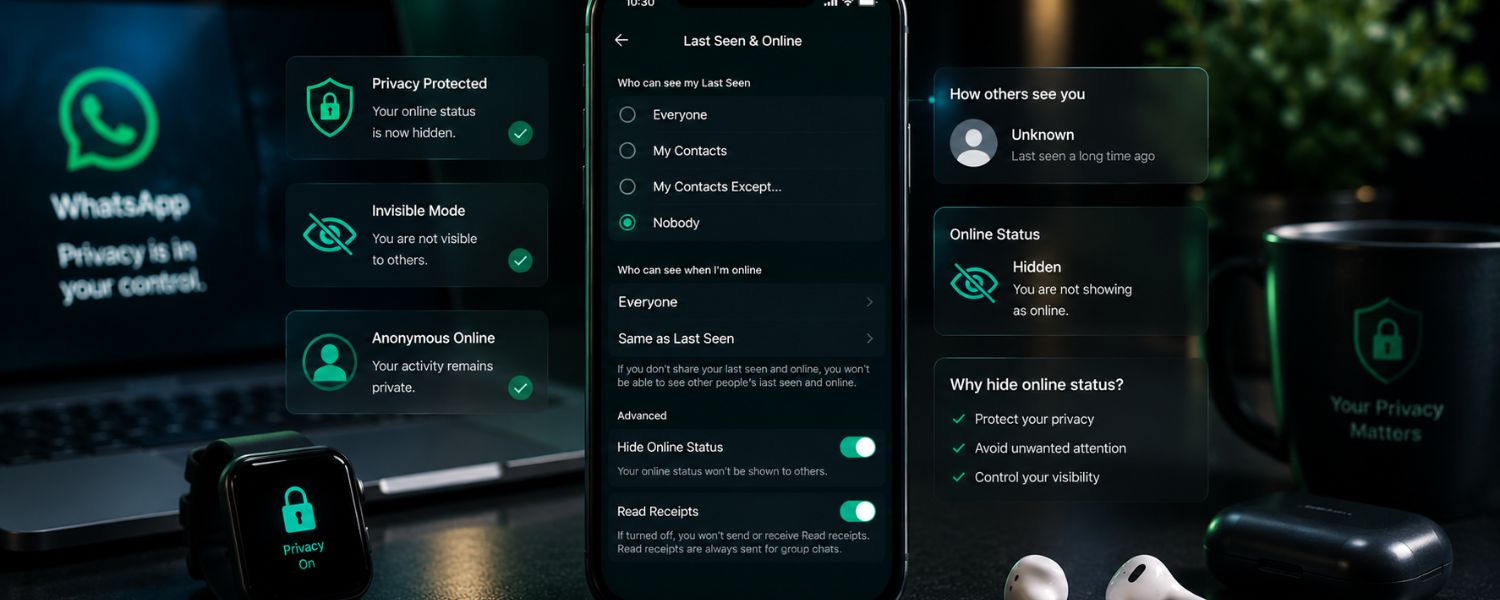
2) Hide your “Last Seen” and “Online” status
Feeling pressured to reply because others can see you’re online? You can hide that signal while still messaging on your own terms.
- Where to find: Settings > Privacy > Last Seen and Online
- What to set: Set Last Seen to Nobody or My Contacts Except…; set Online to Same as Last Seen.
- Why it matters: Reduces social pressure and keeps your activity private.
- Pro tip: Hiding yours also means you won’t see others’ last seen—privacy works both ways.
3) Turn off read receipts (blue ticks)
Read receipts can create unwanted expectations. Turn them off to reply on your schedule.
- Where to find: Settings > Privacy > Read Receipts
- What to set: Toggle off for one-to-one chats; group receipts will still show.
- Why it matters: Stops the “I know you saw it” anxiety loop.
- Pro tip: Toggle back on temporarily when you need delivery clarity (e.g., travel coordination).
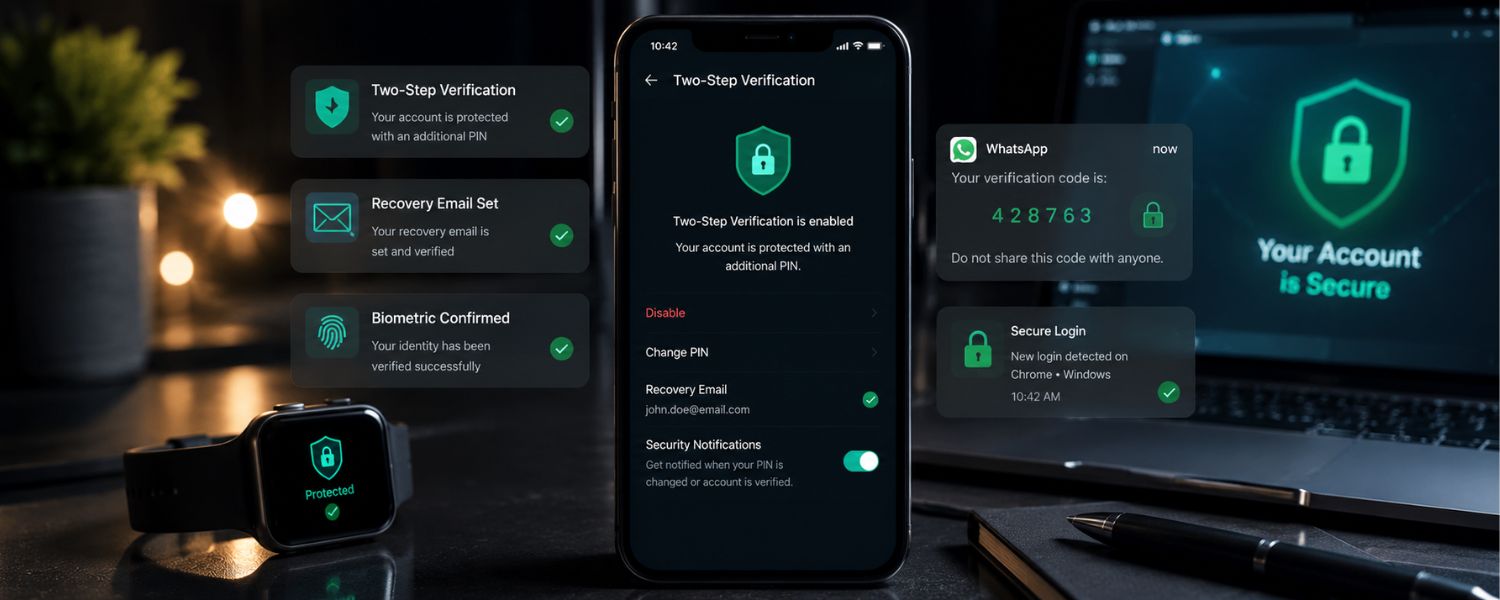
4) Enable two-step verification with a recovery email
This is your strongest defense against account takeovers that exploit your phone number. Add a PIN and a recovery email.
- Where to find: Settings > Account > Two-step verification
- What to set: Create a strong 6-digit PIN and add a recovery email you control.
- Why it matters: Blocks attackers even if they intercept SMS verification.
- Pro tip: Don’t reuse PINs you use elsewhere; consider a formula you can remember but others can’t guess.
5) Review linked devices and log out unknown sessions
WhatsApp Web and companion devices are convenient—but risky if left signed in. Audit regularly.
- Where to find: Settings > Linked Devices
- What to set: Remove any device you don’t recognize or no longer use.
- Why it matters: Prevents silent eavesdropping via old browsers or shared computers.
- Pro tip: If you lost a phone or used a public PC, log out of all devices immediately.
6) Turn on security notifications (contact safety alerts)
When a contact reinstalls WhatsApp or changes phones, their security code changes. Get notified so you can verify sensitive conversations.
- Where to find: Settings > Account > Security notifications
- What to set: Toggle on Show security notifications.
- Why it matters: Helps detect impersonation and keeps private chats private.
- Pro tip: For critical chats, compare security codes in person or via a trusted call.
7) Silence unknown callers
Robocalls and spam calls are on the rise. Silence them automatically while still seeing missed calls in your call list.
- Where to find: Settings > Privacy > Calls
- What to set: Toggle on Silence Unknown Callers.
- Why it matters: Cuts interruptions without blocking genuine first-time callers.
- Pro tip: After silencing, use Block and Report for repeat offenders.
8) Protect your IP address in calls
Your IP can reveal approximate location and network details. Route calls through WhatsApp’s servers for added privacy.
- Where to find: Settings > Privacy > Advanced
- What to set: Toggle on Protect IP address in calls.
- Why it matters: Prevents your IP from being exposed to call recipients.
- Pro tip: If call quality dips, try toggling off temporarily for that call, then re-enable.
Group Controls That Prevent Noise and Overexposure
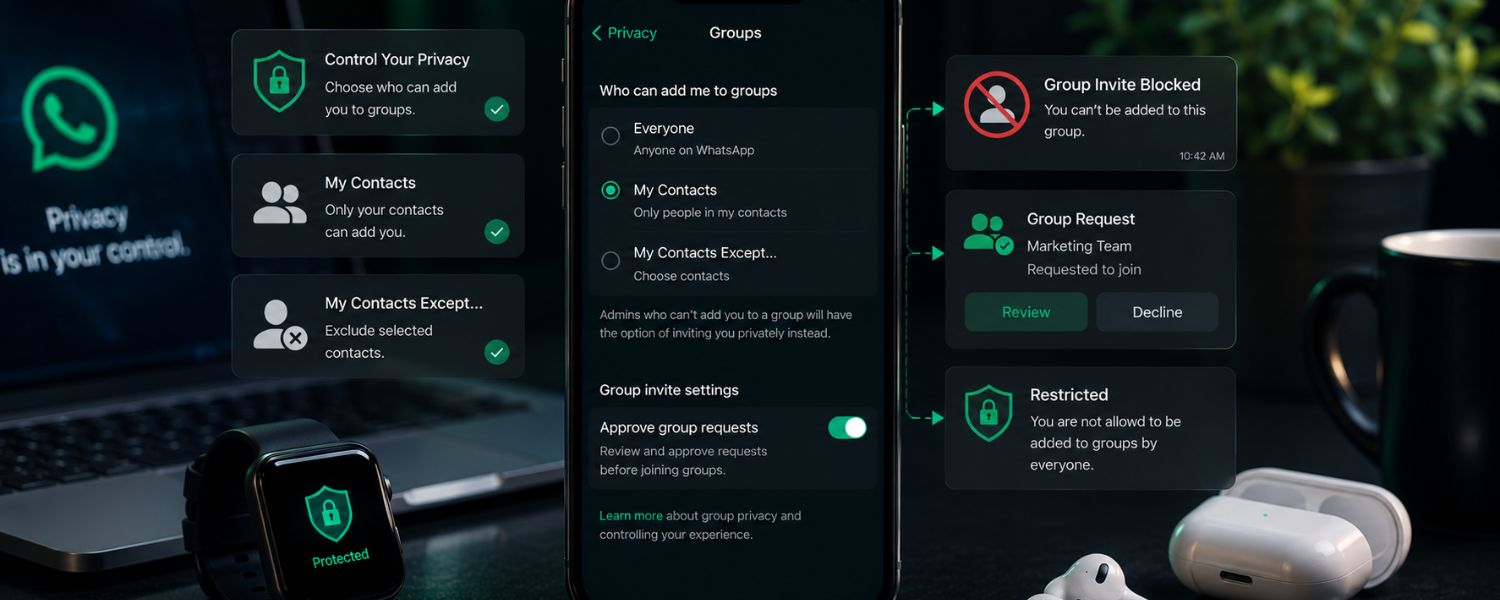
9) Restrict who can add you to groups
Stop surprise group adds and regain control of your inbox. Admins will have to invite you privately if restricted.
- Where to find: Settings > Privacy > Groups
- What to set: Choose My Contacts or My Contacts Except…
- Why it matters: Reduces spammy or irrelevant groups; you get a 3-day invite you can accept or ignore.
- Pro tip: Add chronic over-adders to the “Except…” list for peace of mind.
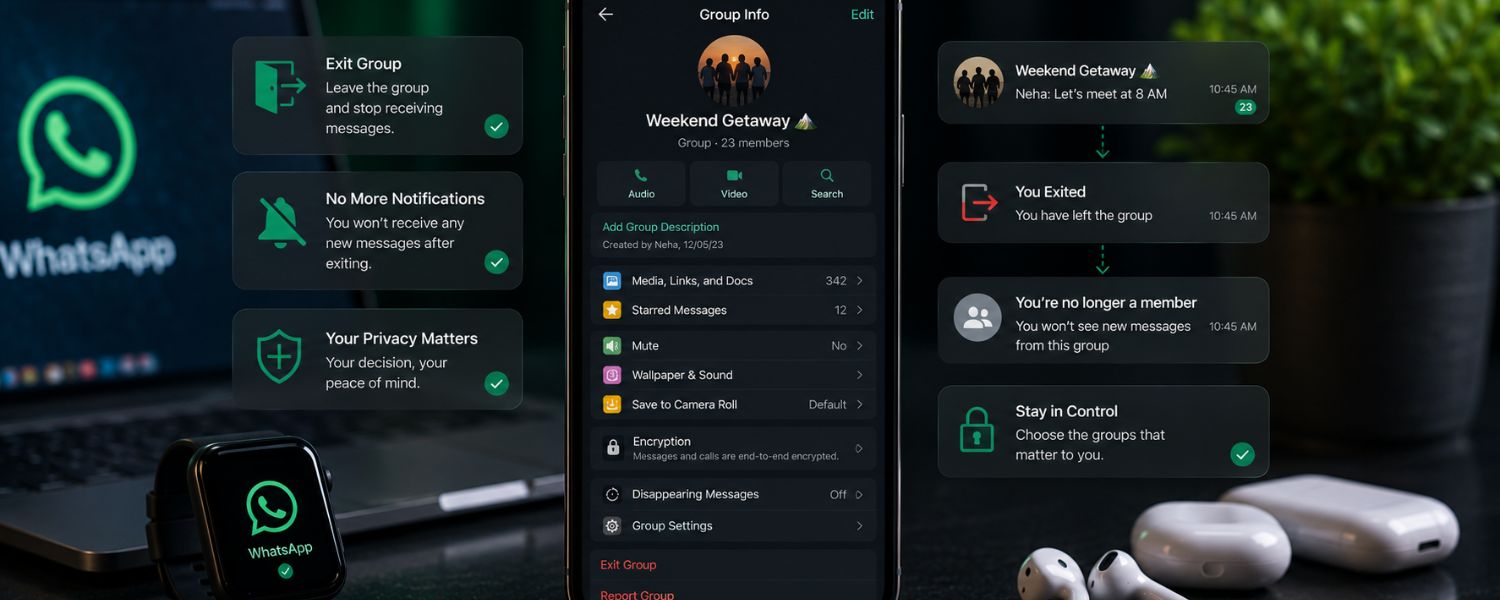
10) Exit groups quietly and use Mute effectively
Leaving a group no longer announces your departure to everyone—only admins see it. Until then, mute the noise.
- Where to find: Open group > Group info > Exit Group; or Mute notifications
- What to set: Mute for 8 hours, 1 week, or Always; then exit when ready.
- Why it matters: Preserves relationships while protecting your attention.
- Pro tip: Before exiting, export needed media or starred messages from the group.
Messaging That Respects Your Time and Privacy
11) Set a default disappearing message timer
Make messages vanish automatically in new chats so your history doesn’t stick around forever.
- Where to find: Settings > Privacy > Default message timer
- What to set: 24 hours, 7 days, or 90 days for new chats.
- Why it matters: Reduces long-term data exposure and clutter.
- Pro tip: For existing chats, enable Disappearing messages from the chat’s info screen.
12) Use View Once for sensitive photos and videos
For passwords on paper, IDs, or kids’ schedules, send media that disappears after one view.
- Where to find: In the media composer, tap the 1-in-a-circle icon before sending
- What to set: View Once for one-time visibility
- Why it matters: Reduces the chance of sensitive media being saved or reshared.
- Pro tip: Screenshots may be blocked, but recipients could still use another device—share only what you must.
13) Lock WhatsApp and specific chats with biometrics
Keep nosy hands out—whether it’s a borrowed phone or curious kids. Lock the app or a “Locked chats” folder with Face ID or fingerprint.
- Where to find: App lock: Settings > Privacy > Screen Lock; Chat lock: Chat info > Chat lock
- What to set: Require Face ID/Touch ID/fingerprint after a short delay or immediately
- Why it matters: Protects sensitive threads even if your phone is unlocked.
- Pro tip: Hide notifications for locked chats to avoid preview leaks on your lock screen.
Cut Distractions Without Missing What Matters
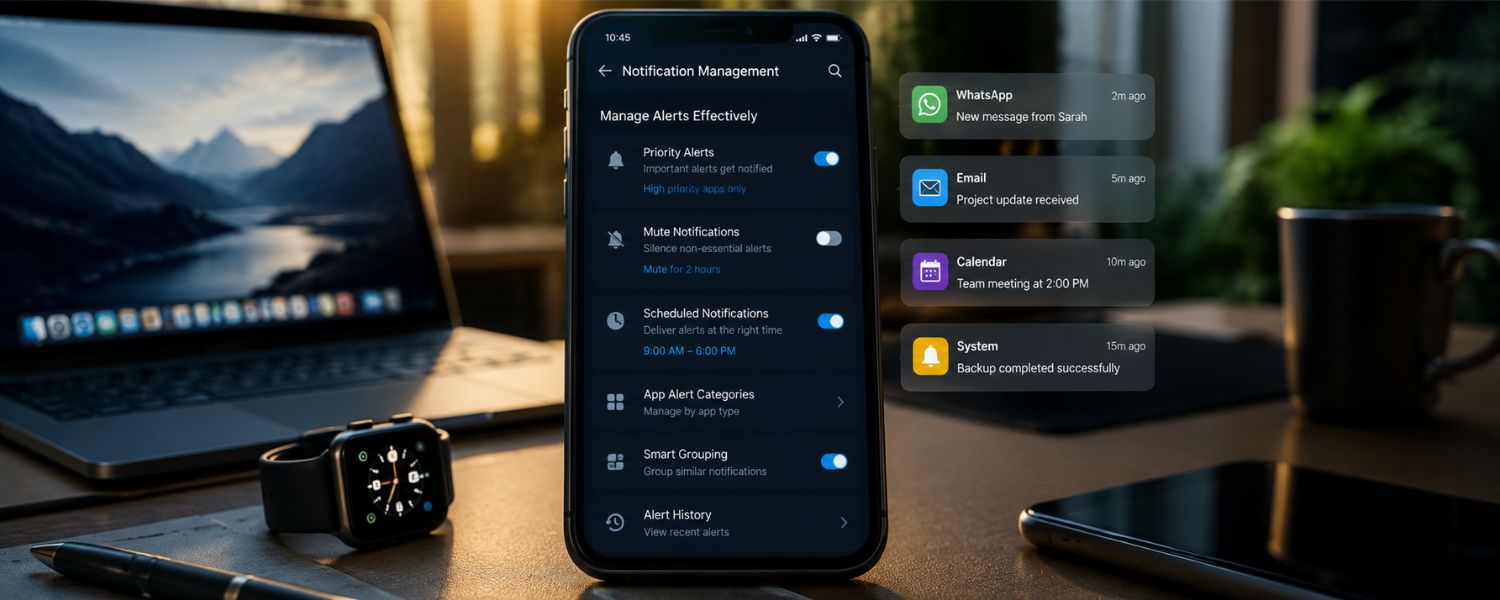
14) Manage notifications like a pro
Stop the ping storm. Tune alerts so important people break through and everything else waits.
- Where to find: Settings > Notifications
- What to set: Separate tones/vibration for Messages, Groups, and Calls; disable High Priority for non-essentials.
- Why it matters: Protects focus while keeping critical alerts visible.
- Pro tip: Set custom tones per chat (Chat info > Custom Notifications) for family or school admins.
Save Data, Storage, and Battery
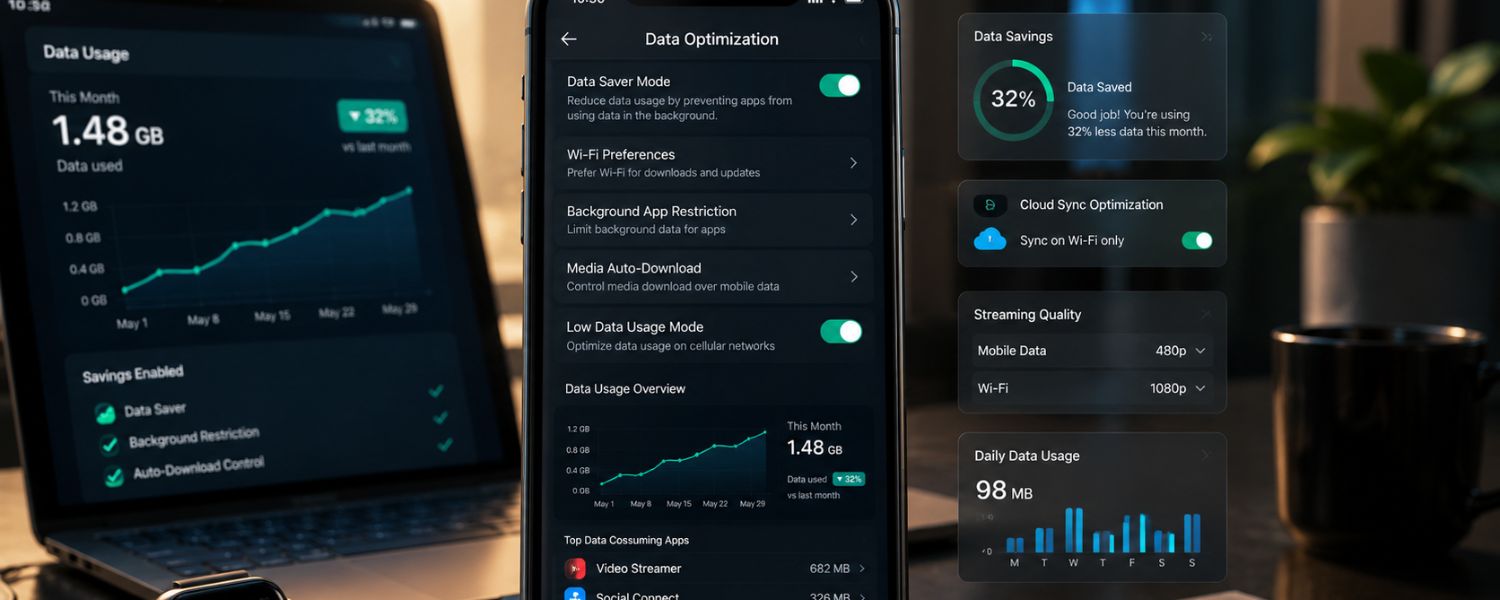
15) Optimize media auto-download
Auto-downloading every photo and video burns data and storage. Limit downloads to Wi‑Fi or manual.
- Where to find: Settings > Storage and Data > Media Auto-Download
- What to set: On mobile data: None; On Wi‑Fi: Photos (optional), leave Videos off; Roaming: None
- Why it matters: Prevents surprise data charges and phone bloat.
- Pro tip: Long-press unwanted media in chats and delete for everyone quickly to avoid backups saving it.
16) Choose smarter media upload quality
WhatsApp supports HD photos and higher-quality video—but big files take longer and consume data. Pick a sensible default.
- Where to find: Settings > Storage and Data > Media Upload Quality (Photos; HD can also be set per send)
- What to set: Auto or Data Saver for routine shares; switch to HD only when quality matters.
- Why it matters: Balances clarity with speed and data usage.
- Pro tip: For documents, share as “Document” to preserve original file quality and metadata when needed.
17) Stop auto-saving media to your camera roll
Your Photos app shouldn’t mirror every meme. Keep personal gallery clean and private.
- Where to find: iPhone: Settings > Chats > Save to Camera Roll; Android: Settings > Chats > Media visibility
- What to set: iPhone: Never; Android: Off (override per chat in Chat info)
- Why it matters: Reduces clutter and keeps sensitive images out of shared galleries or cloud photos.
- Pro tip: For a specific chat (e.g., school updates), enable media visibility just there.
18) Clean up with Storage Manager
Large videos, forwarded files, and duplicates hog space. The Storage Manager shows the biggest offenders.
- Where to find: Settings > Storage and Data > Manage Storage
- What to set: Review “Larger than 5 MB” and “Forwarded many times” and delete in bulk.
- Why it matters: Frees gigabytes quickly without losing important chats.
- Pro tip: Clear downloaded stickers you no longer use—they add up.
Make WhatsApp Feel Like Yours
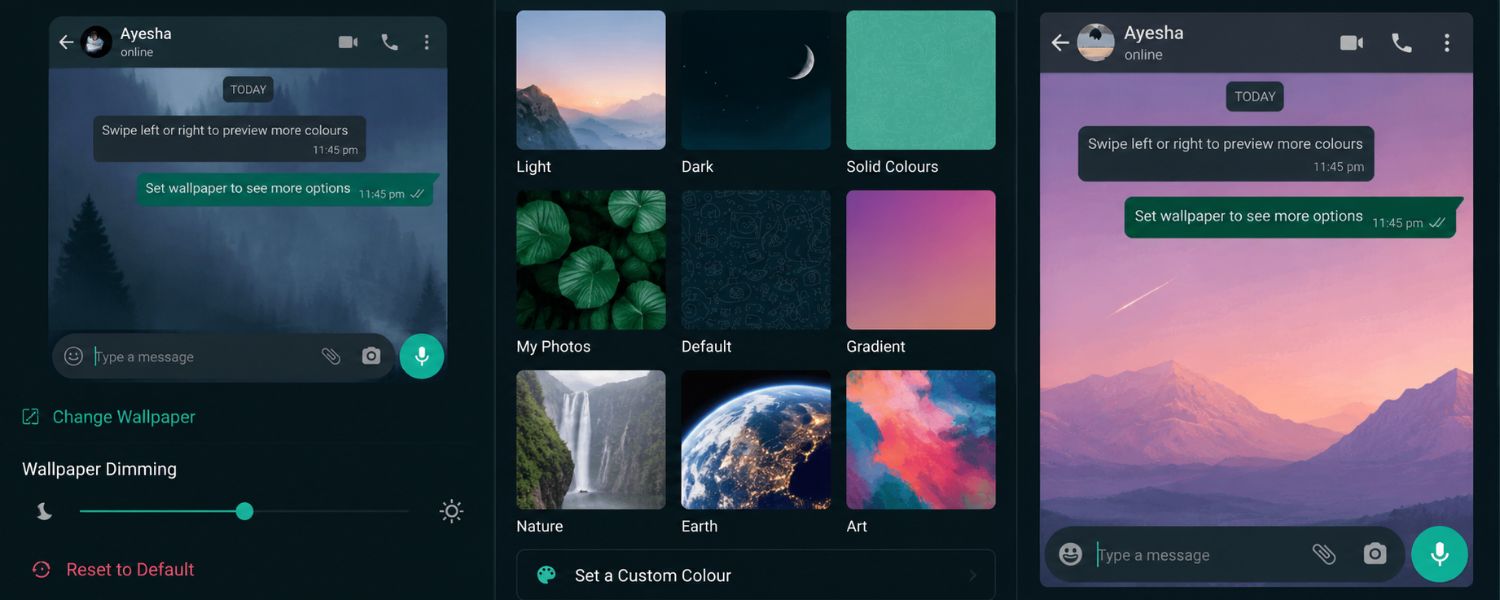
19) Customize chat wallpapers and themes
Visual cues help you separate work, school, and family threads at a glance—and make chatting more enjoyable.
- Where to find: Settings > Chats > Wallpaper; Android: Settings > Chats > Theme
- What to set: Different wallpapers per chat; Dark theme for low-light comfort.
- Why it matters: Reduces mistakes (like sending to the wrong chat) and eye strain.
- Pro tip: Use a distinct wallpaper for high-stakes groups (e.g., classroom alerts) so they instantly stand out.
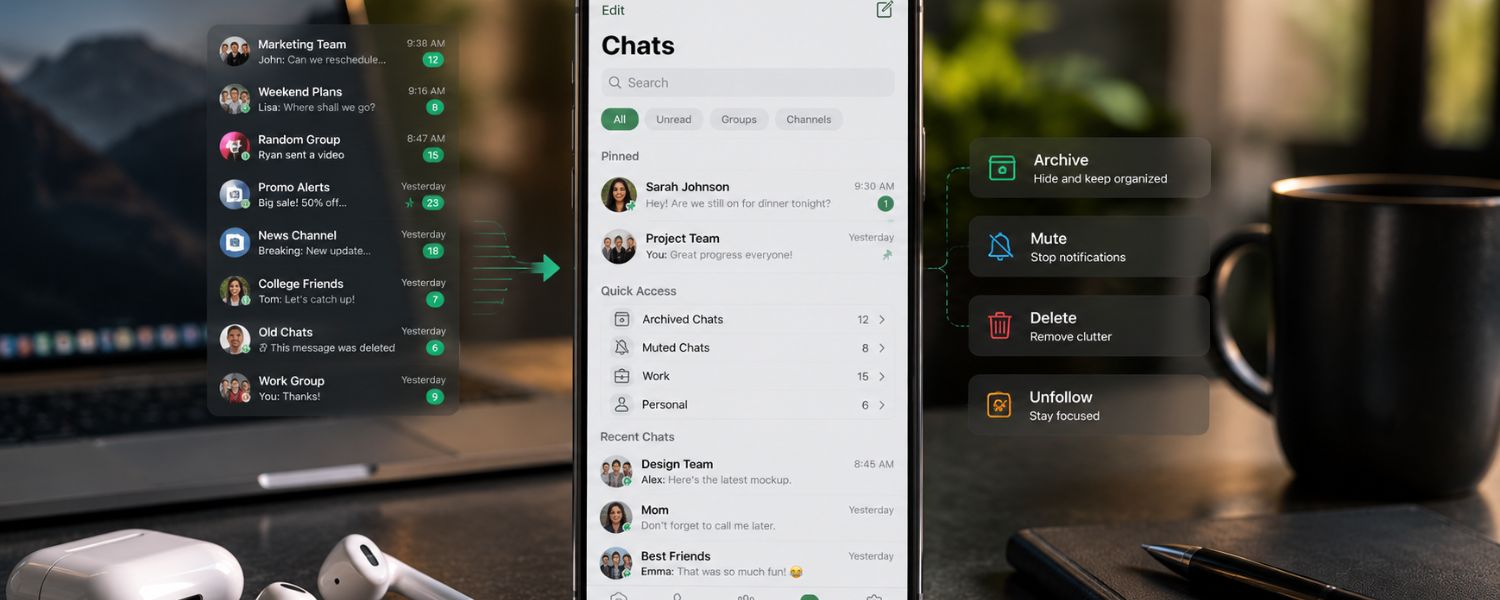
20) Archive and pin chats to declutter
Keep your home screen calm. Archive dormant threads without deleting them, and pin key conversations to the top.
- Where to find: Swipe a chat > Archive; Settings > Chats > Keep Chats Archived; Long-press chat > Pin
- What to set: Enable Keep Chats Archived to stop archived chats from popping back up.
li>Why it matters: Keeps focus on what matters today while preserving history.
- Pro tip: Pin up to three priority chats for one-tap access.
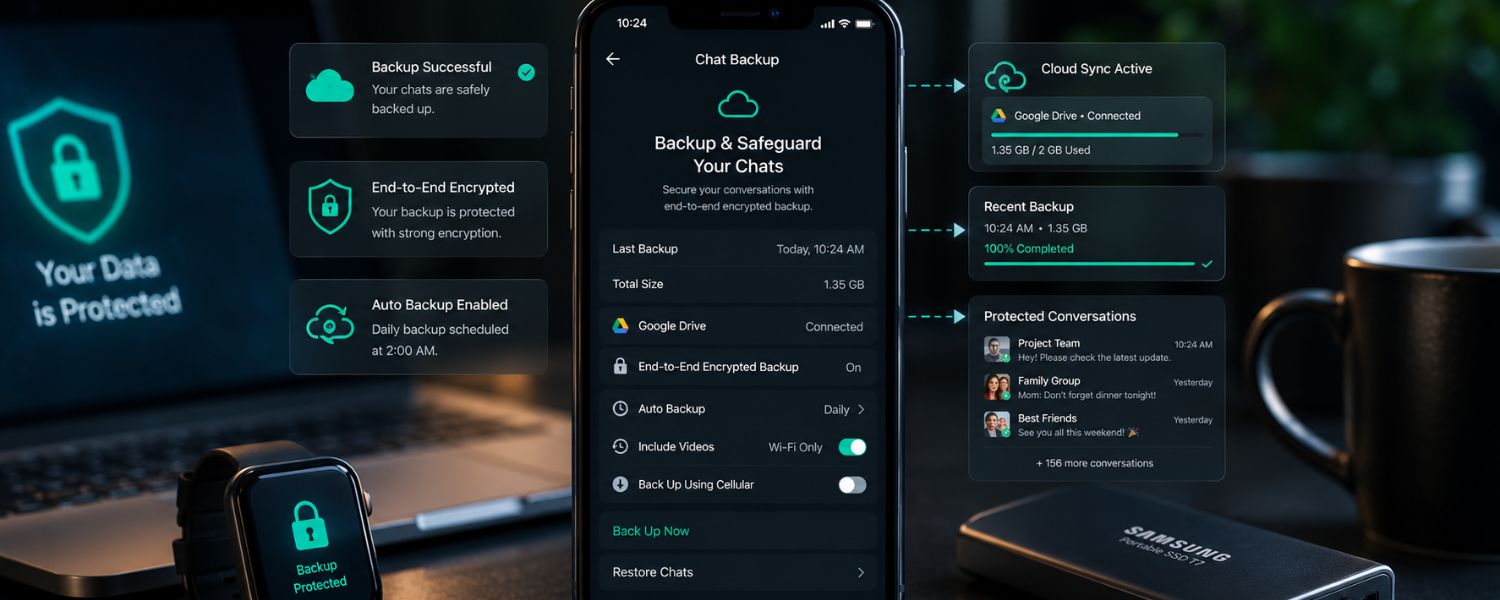
21) Back up safely—with end-to-end encryption
Backups are your safety net after a phone loss or upgrade. Encrypt them so only you can read them.
- Where to find: Settings > Chats > Chat Backup
- What to set: Choose Google Drive (Android) or iCloud (iPhone); enable End-to-end Encrypted Backup; set a schedule; decide whether to include videos.
- Why it matters: Ensures recoverability without exposing chat content to cloud providers.
- Pro tip: Write down your backup password or store the encryption key securely—lose it and you cannot restore.
Bonus Safety and Sanity Tips
- Block and report spam: Open chat > Contact/Group info > Block; use Report to help train WhatsApp’s abuse systems.
- Status privacy: Settings > Privacy > Status > Only share with… for a trusted circle.
- Live Location: Share only temporarily and with people you trust; stop sharing after it’s no longer needed.
- Name check: In groups, save real contact names so you know exactly who’s who before sharing family details.