
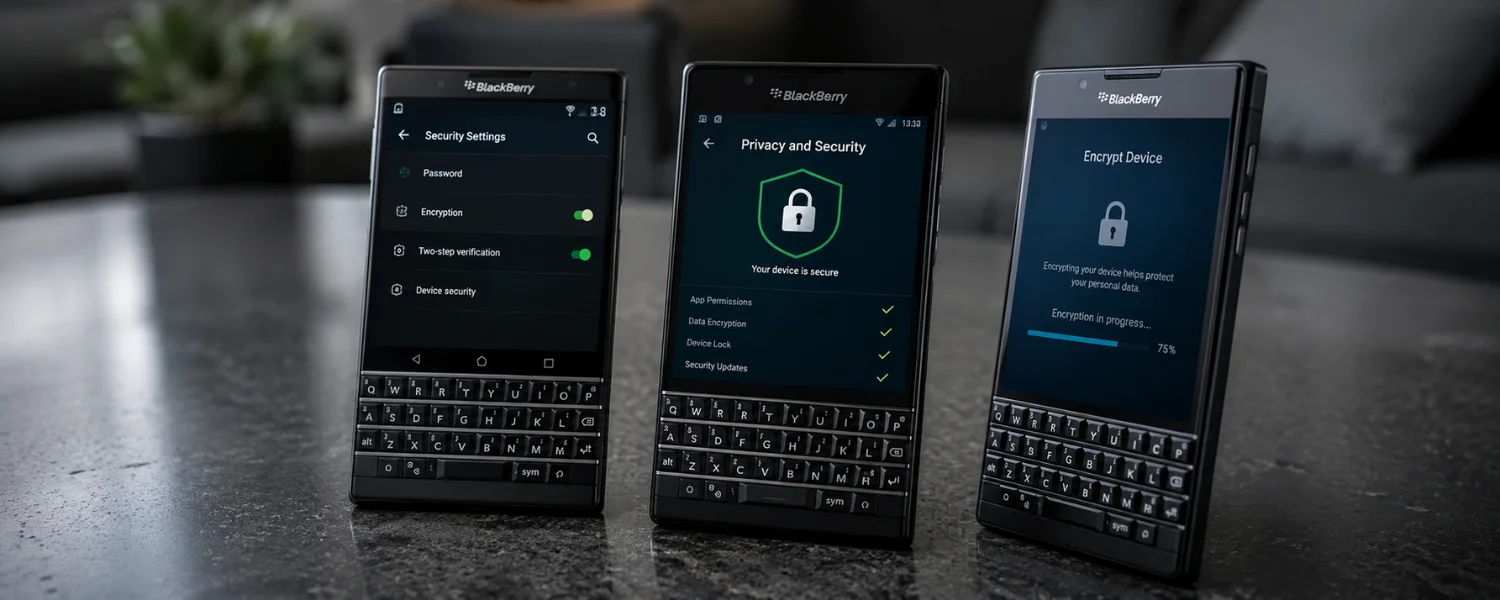
When your entire life fits in your pocket, a misplaced or stolen phone can quickly become a worst‑case scenario. BlackBerry devices were built with security in mind, but the strongest protection only works when you turn it on and use it well. The steps below blend BlackBerry’s classic safeguards with modern privacy habits to keep your contacts, messages, accounts, and files safe—whether you carry a legacy BlackBerry OS handset, a BB10 device, or a newer Android‑based BlackBerry.
Harden Your BlackBerry: The Must‑Do Settings
1) Disable Bluetooth When Not in Use and Make Your Device Non‑Discoverable
Bluetooth is convenient, but it also opens a door to nearby devices. Reduce the risk of virus transmission and unauthorized access by turning Bluetooth off whenever you are not actively using it. When you do need it, set your phone to “Not Discoverable” so strangers cannot see your device name and attempt a connection.
- Where to find it: Settings > Bluetooth > turn Off; Discoverable/Visibility > set to No/Hidden.
- Pro tip: Remove old pairings you no longer use and rename your device to something generic (not your full name).
2) Store Logins Safely with Password Keeper (Avoid Saving in the Browser)
Protect user accounts and passwords with BlackBerry’s built‑in Password Keeper. It encrypts your credentials behind a single master password and keeps them out of web browsers, which are more exposed to phishing and rogue scripts. Do not save passwords in the browser’s autofill.
- Where to find it: Open Password Keeper > set a strong master password > add accounts.
- Pro tip: Enable clipboard auto‑clear (if available) and consider an encrypted backup of your vault.
3) Turn On Content Protection/Device Encryption (Include Your SD Card)
Protecting content is essential. On legacy BlackBerry OS, enable Content Protection; on BB10 and Android‑based BlackBerry models, enable full device encryption. This ensures your address book, messages, attachments, and files are unreadable without your password—even if someone removes your storage.
- Where to find it: Settings > Security and Privacy > Encryption (BB10/Android); Options > Security Settings > Content Protection (legacy OS).
- Also encrypt: microSD card (Settings > Storage > Encrypt Media Card) so photos and documents are safe off‑device.
4) Use a Strong Device Password and Tighten Lock Settings
Strengthen your device security with a long passcode or complex password. Set a short auto‑lock timeout, restrict app installs where possible, and limit the number of failed attempts before the phone wipes itself. This stops shoulder‑surfers and protects your data if the phone is lost.
- Where to find it: Settings/Options > Password or Security > Device Password; set Timeout, Attempts, and Install Permissions.
- Pro tip: Avoid simple patterns or birthdays; use at least 6–8 characters mixing letters, numbers, and symbols.
5) Be Wary of Unknown File Transfers and Downloads
Malicious files, trojans, and infected attachments can compromise your phone. Avoid accepting files from people you do not know and only download apps from trusted sources. If you install a security app, choose a reputable brand and keep it updated.
- Safer habits: Verify links in messages, disable automatic media downloads, and avoid sideloaded apps from unverified sites.
6) Enable Memory Cleaning to Wipe Sensitive Traces
Memory Cleaning is a powerful, often overlooked feature on older BlackBerry devices that erases cached data and remnants of encrypted documents, messages, and browser history. Turning it on improves privacy and can boost performance by clearing clutter.
- Where to find it: Options > Security Options > Memory Cleaning, then enable automatic cleaning.
- Note: Availability varies by model; if not present, manually clear caches in Browser and Hub.
7) Lock Down BBM Privacy and Invites
Protect your BlackBerry Messenger by filtering invites and limiting what contacts can see. Add a security question to block unidentified users, disable auto‑accepting voice notes, and hide your location and time zone from your profile.
- Where to find it: BBM > Menu > Options > enable “Display security question on invitation”; uncheck “Automatically accept voice notes.”
- Privacy: BBM > Profile > uncheck “Show my location/time zone information.”
Advanced Protections Most People Miss
8) Set Up BlackBerry Protect (or Find‑My‑Phone) for Remote Lock and Wipe
If your phone goes missing, seconds count. Enable BlackBerry Protect (BB10/legacy) or Android’s Find My Device (Priv/KEYone/KEY2) to locate your phone on a map, make it ring, display a return message, lock it, or wipe it remotely.
- Where to find it: Settings > BlackBerry Protect (BB10) or Settings > Security > Find My Device (Android‑based BlackBerry).
- Test it now by signing in to the corresponding web portal and confirming you can see your device.
9) Keep Your OS and Apps Updated
Updates patch security holes attackers rely on. Install official OS updates and update apps from trusted stores only. If your device is end‑of‑life, be extra cautious with downloads and web browsing.
- Where to find it: Settings > Software Updates (BB10/Android) or via your carrier/desktop software for legacy devices.
10) Review App Permissions and Remove What You Don’t Use
Many apps request access they do not need. Regularly audit permissions for camera, microphone, contacts, location, and files. Revoke anything unnecessary and uninstall apps you have not used in months.
- Where to find it: Settings > App Permissions (BB10/Android) or Application Management (legacy OS).
11) Protect Your SIM Card with a SIM PIN
A SIM PIN prevents thieves from using your number for calls, texts, or two‑factor codes. If enabled, the phone will ask for the SIM PIN at boot, adding another barrier after a theft.
- Where to find it: Settings > Security > Set up SIM PIN. Store the PUK code from your carrier in a safe place.
12) Use Trusted Wi‑Fi Only and Consider a VPN on Public Networks
Public networks can expose your traffic. Stick to encrypted Wi‑Fi you trust, disable auto‑join for open networks, and use a reputable VPN when you must connect in airports, hotels, or cafes.
- Where to find it: Settings > Wi‑Fi > disable Auto‑Join for open SSIDs; Settings > VPN to configure a provider.
13) Turn Off NFC When You Don’t Need It
NFC enables tap‑to‑pay and quick file transfers, but leaving it on invites accidental interactions. Switch it off by default and only enable it when you intend to use it.
- Where to find it: Settings > Network Connections > NFC (BB10) or Settings > Connected devices > NFC (Android).
14) Reduce Lock‑Screen and Notification Exposure
Notifications can reveal private messages to anyone glancing at your screen. Hide message previews on the lock screen and require the device password before viewing content.
- Where to find it: Settings > Notifications > Lock Screen > Hide Sensitive Content.
15) Browse and Email More Privately
Use private browsing, clear your cache regularly, and avoid auto‑fill for forms containing personal data. In email, disable automatic image loading to stop tracking pixels.
- Where to find it: Browser Settings > Privacy > Private Browsing/Clear Data; Email Settings > Images > Ask Before Displaying.
16) Back Up Regularly—And Encrypt Your Backups
Backups are your safety net after loss, damage, or a remote wipe. Use desktop software or cloud options to back up device settings, media, and your Password Keeper (exported securely). Store backups in an encrypted location.
- Where to find it: BlackBerry Link/desktop suite (legacy/BB10) or Android backup. Protect backup files with strong passwords.
17) Prepare a Quick‑Recovery Kit
Make recovery faster if the worst happens. Note your device IMEI, label a lock‑screen return message, keep your carrier’s number handy to blacklist a stolen phone, and, if you use a work device, know how to alert IT for a remote wipe.
- Find IMEI: Dial *#06# or check Settings > About. Keep it in a secure note.
Quick Setup Checklist
- Turn on device and SD card encryption/Content Protection.
- Set a strong password, 30–60 second auto‑lock, and 5–10 attempt auto‑wipe.
- Enable BlackBerry Protect/Find My Device and test it once.
- Hide lock‑screen previews; review app permissions; disable Bluetooth/NFC by default.
- Back up your device and Password Keeper; store the IMEI and carrier contact securely.
Original Tips Refined for Clarity
In today’s digital age, we store a lot of private and confidential information on our BlackBerry smartphones. To prevent unauthorized access and protect your data in the event of a lost or stolen device, it is important to implement the following tips:
1. Bluetooth Connectivity — Disable Bluetooth when not in use to reduce the risk of virus transmission and unauthorized access. In Bluetooth settings, select “No” under “Discoverable” to add another layer of protection.
2. Password Keeper Utility — Use BlackBerry’s built‑in Password Keeper to securely store your user accounts and passwords. Avoid saving login information in your Internet browser, which can expose your data to external threats.
3. Data Encryption — Enable “Content Protection” on legacy devices or “Device Encryption” on newer models through Options/Settings > Security. This protects your address book and limits unauthorized access to sensitive data.
4. Set Up Password Protection — Choose a strong password and configure a short timeout, app installation permissions, the number of password attempts, and logging restrictions. Enable the device password feature via Options > Password (or Settings > Security).
5. Beware of Unknown File Transfers — Be careful when downloading files or accepting transfers from unknown sources. Malicious files, viruses, and trojans can damage your device. If you install antivirus, choose a reputable application and scan incoming files.
6. Memory Cleaning — Enable Memory Cleaning to delete confidential data such as encrypted documents, emails, SMS messages, browser cache, unused apps, media files, and call logs. Find it via Options > Security Options > Memory Cleaning.
7. BBM Privacy Features — Improve BBM security by setting a security question for BBM invites to filter unidentified users: BBM > Menu > Options > “Display security question on the invitation.” Disable “Automatically accept voice notes” to prevent offensive or harmful audio files. To maintain privacy, hide your location and time zone in BBM > Profile > uncheck “Show my location/time zone information.”