
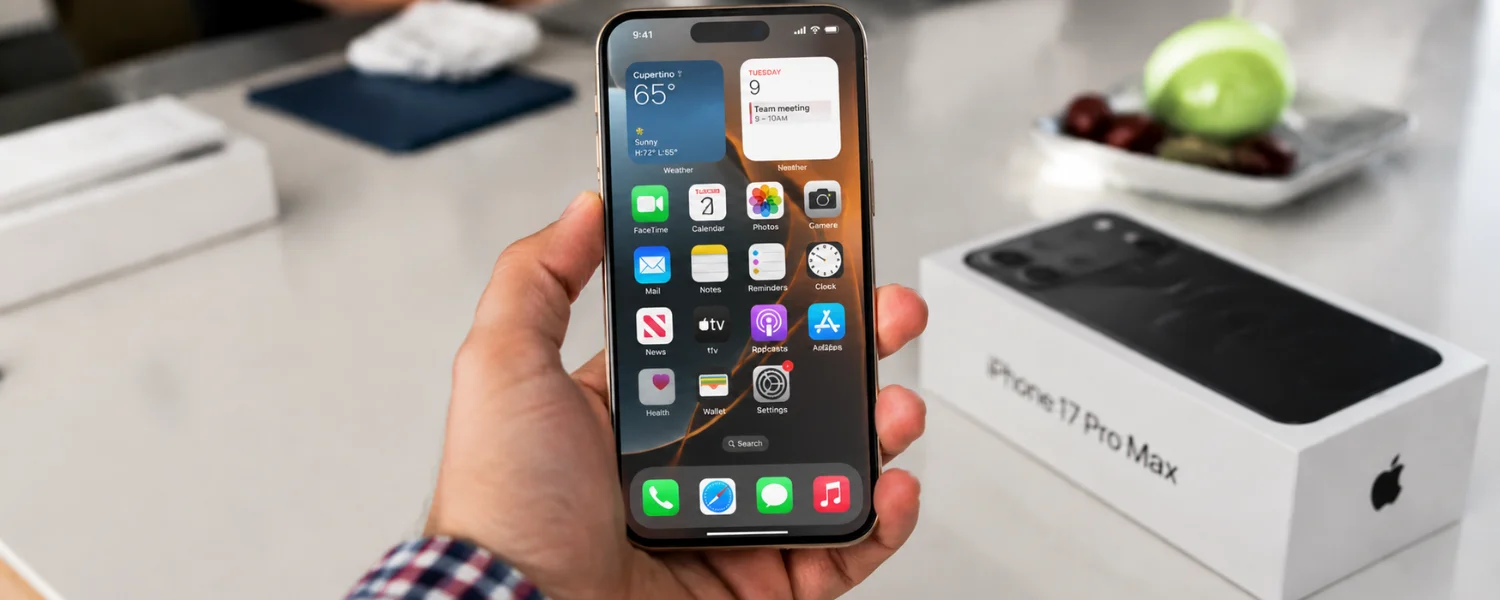
iOS 9 wasn’t just a routine update; it quietly reshaped how you move between tasks, find information, save battery, and capture everyday life. Whether your child is researching a project, you’re commuting across town, or your family is sharing devices at home, these features can make your iPhone and iPad feel faster, smarter, and more dependable. Use this guide to set up the right options, learn time-saving gestures, and unlock the simple wins that add up to a noticeably better day.
iOS 9 Features and Tips You’ll Use Every Day
1) Switch Apps Faster with the New App Switcher
Amid busy days, rapid app changes keep you productive. iOS 9 redesigned the App Switcher into fluid, overlapping cards you can swipe through quickly. It pairs beautifully with proactive suggestions, so the apps you need next are often just a tap away.
Where to find it: Double-press the Home button; swipe left/right to switch or swipe up on a card to close.
Works on: All iOS 9-compatible iPhone and iPad models.
Why it helps: Less friction moving between messages, calendars, schoolwork, and maps saves real time.
Tip: On iPhone 6s and later, press firmly on app icons that support Quick Actions (3D Touch) to jump directly into common tasks.
2) Find Anything with Smarter Spotlight and Siri Suggestions
iOS 9 supercharged search. Pull down on the Home screen or swipe right to open Spotlight and see Siri Suggestions for contacts, apps, and news. Thanks to Core Spotlight, searches can reach inside supported third‑party apps to surface notes, messages, and more.
Where to find it: Swipe right from the first Home screen or pull down anywhere on Home to search.
Works on: All iOS 9 devices (app content search depends on developer support).
Why it helps: You’ll spend less time digging through apps and more time getting things done.
Tip: Use specific keywords you’ve added to document titles or note headings to make results pop up instantly.
3) Navigate Confidently with the Updated Maps
Apple Maps in iOS 9 improved place search, directions, and Nearby recommendations. You’ll find restaurants, shops, and essentials faster, with cleaner route options for walking and driving.
Where to find it: Maps app; search or tap Nearby for categories.
Works on: All iOS 9 devices.
Why it helps: Clear routing and Nearby save time when you’re exploring a new neighborhood or planning a family outing.
Tip: Add favorite locations (home, school, work) for one-tap directions and proactive suggestions before you leave.
4) Build a Connected Life with HomeKit, MapKit, HealthKit, and CloudKit
iOS 9 strengthened Apple’s developer frameworks so apps can talk to your home, your location, your health data, and the cloud. For families, that means smarter lighting, more accurate location-aware reminders, secure health tracking, and seamless document sync.
Where to find it: In apps that support these frameworks (look for “Works with Apple HomeKit,” Health integration, or iCloud sync).
Works on: All iOS 9 devices; HomeKit accessories vary by brand.
Why it helps: Reliable, private data sharing across trusted apps creates real-life convenience without juggling logins.
Tip: Manage health data access in Settings > Privacy > Health, and Home data in your Home app-compatible accessories.
5) Maximize Battery Life with Low Power Mode
Low Power Mode is your safety net when the day runs long. It reduces background activity, visual effects, and automatic downloads to stretch every percent of charge.
Where to find it: Settings > Battery > Low Power Mode.
Works on: All iOS 9 devices.
Why it helps: Expect meaningful extra hours for calls, texts, maps, and schoolwork.
Tip: Ask Siri “Turn on Low Power Mode.” Also review Battery usage by app (Settings > Battery) to spot power hogs.
6) Streamline App Installs with Smarter App Store Downloads
First impressions matter. iOS 9 made installs simpler and storage-friendlier so you can add new apps without babysitting your Home screen. The “Get” button installs directly, and devices download only what they need, reducing clutter.
Where to find it: App Store app listings.
Works on: All iOS 9 devices.
Why it helps: Faster onboarding reduces friction for students and families setting up new devices.
Tip: Before installing, check app size and recent update notes to be sure it fits your storage and needs.
7) Capture More with Live Photos and Better Camera Controls
On iPhone 6s and 6s Plus, Live Photos capture a moment with motion and sound—great for kids’ milestones and travel. iOS 9 also refined focus and exposure so everyday photos look crisper with less effort.
Where to find it: Camera app; tap the Live Photos icon to enable/disable.
Works on: Live Photos on iPhone 6s/6s Plus and later; general camera refinements across devices.
Why it helps: Your camera becomes a better storyteller, not just a snapshot tool.
Tip: Keep the phone steady a second before and after the shutter for smoother Live Photos.
8) Save Space with App Thinning (Slicing, On‑Demand Resources, Bitcode)
Storage is precious, especially on 16 GB devices. App Thinning ensures you only download the assets your device needs, can fetch extras later, and benefits from App Store optimizations over time.
Where to find it: It works automatically when you install apps built for iOS 9 or later.
Works on: All iOS 9 devices (developer support required).
Why it helps: Smaller app footprints mean more room for photos, videos, and school files.
Tip: Periodically offload rarely used apps and re-download them on demand—your documents stay in iCloud.
9) Sync Work Seamlessly with iCloud Drive
Start a document on your iPhone, add images on iPad, and finish on a Mac—without emailing files to yourself. iCloud Drive in iOS 9 centralizes your documents across devices.
Where to find it: Settings > iCloud > iCloud Drive; enable “Show on Home Screen” to access the app.
Works on: All iOS 9 devices (Apple ID required).
Why it helps: Shared family files and school projects stay organized and accessible.
Tip: Use iCloud Drive as the attachment source in Mail to avoid duplicate file copies.
10) Type Faster with QuickType and a Smarter Shortcut Bar
QuickType anticipates your next words and offers context-aware suggestions to speed up typing and reduce errors. On iPad, a refined shortcut bar puts formatting and media tools within reach.
Where to find it: Any keyboard; QuickType suggestions appear above the keys.
Works on: All iOS 9 devices.
Why it helps: Writing papers, emails, and group texts gets easier and more accurate.
Tip: On iPad, place two fingers on the keyboard to transform it into a trackpad for precise cursor control.
11) Multitask on iPad with Slide Over, Split View, and Picture in Picture
iOS 9 turned iPad into a true multitasking machine. Peek at a second app with Slide Over, work in two apps side by side with Split View, and keep video or FaceTime floating while you take notes.
Where to find it: Swipe in from the right for Slide Over; drag the divider to enter Split View; press the PiP icon on video players.
Works on: Slide Over and PiP on iPad Air and newer; Split View on iPad Air 2 and newer, iPad mini 4, and later models.
Why it helps: Ideal for research + writing, lesson plans + grading, or maps + messages.
Tip: Arrange apps of similar tasks (e.g., Notes + Safari) to build a repeatable study or work setup.
12) Ride Smarter with Public Transit in Maps
Transit in iOS 9 Maps brings detailed subway, bus, and train directions where available—including station entrances and walking routes between lines. For students and commuters, it removes guesswork.
Where to find it: Maps > Directions > Transit.
Works on: All iOS 9 devices (availability varies by city).
Why it helps: Realistic travel times and step-by-step guidance reduce missed connections.
Tip: Favorite your frequent stations and lines for one-tap planning during rush hour.
13) Enjoy a Better Music Experience with Apple Music
iOS 9 refined the Music app to make streaming, curated playlists, and library management feel more intuitive. It’s easier to discover new tracks, follow artists, and keep kids’ playlists separate from your own.
Where to find it: Music app; Apple Music subscription optional.
Works on: All iOS 9 devices.
Why it helps: Soundtracks for study, workouts, and road trips are always on hand.
Tip: Enable “Offline” for essential playlists before travel or exams to save data and avoid interruptions.
14) Teach Siri Your Voice with “Hey Siri” Training
Voice recognition gets personal in iOS 9. Train Siri to your voice for more accurate hands-free activation—even with regional accents—so you can set timers, send texts, or start music without touching your device.
Where to find it: Settings > General > Siri; enable “Allow ‘Hey Siri’,” then follow the prompts.
Works on: All iOS 9 devices when plugged in; iPhone 6s/6s Plus support always‑on “Hey Siri.”
Why it helps: Safer in the car, handier in the kitchen, and more inclusive for diverse speech patterns.
Tip: Retrain Siri if accuracy drops, or when a new family member begins using the device.
15) Use “Back to App” for Smoother Handoff Between Apps
When an app opens a link or you jump to Settings, iOS 9 places a handy “Back to…” link in the top-left status bar. One tap returns you to what you were doing—no manual app hunt needed.
Where to find it: Top-left corner after opening a link or cross-app action.
Works on: All iOS 9 devices.
Why it helps: Cuts down on lost context during research and signup flows.
Tip: Combine with the App Switcher to hop among multiple related tasks without losing your place.
16) Upgrade Your Notes: Checklists, Sketches, Photos, and Links
Notes graduates from simple memos to a flexible organizer. Create to-do checklists, sketch diagrams with your finger, add photos, and save web links directly into a note—perfect for classwork or home projects.
Where to find it: Notes app; use the “+” bar above the keyboard.
Works on: All iOS 9 devices; sketches are best on iPad.
Why it helps: One place for ideas, sources, and visuals makes projects easier to manage.
Tip: Turn on iCloud for Notes (Settings > iCloud) so every edit syncs across family devices and Macs.
17) Stay Informed with the News App
iOS 9 introduced Apple News, aggregating trusted sources into a clean, customizable feed. Choose topics and publishers for balanced, age-appropriate reading.
Where to find it: News app (availability varies by region).
Works on: All iOS 9 devices in supported countries.
Why it helps: Curated reading lists support homework, current events study, and mindful screen time.
Tip: Follow specific channels for your child’s classes (science, history) to surface relevant articles.
18) Browse Better with Safari Reader and Content Blockers
Reading on the web gets calmer with Safari Reader, which strips clutter for a book-like page. Content Blockers (from the App Store) can reduce intrusive ads and trackers for faster, cleaner pages.
Where to find it: Safari; tap the Reader icon in the address bar; install Content Blockers via the App Store and enable in Settings > Safari.
Works on: All iOS 9 devices (Content Blockers on 64‑bit devices).
Why it helps: Improves focus for students and reduces data use on the go.
Tip: In Reader, adjust font and background for eye comfort during long reading sessions.
19) Simplify Payments with Wallet and Store Cards
Wallet in iOS 9 organizes credit/debit cards, boarding passes, tickets, and store loyalty cards. With Apple Pay support, checkout is quicker and more private where accepted.
Where to find it: Wallet app; add cards via “+.”
Works on: iPhone with Touch ID for in‑store Apple Pay; all devices for passes.
Why it helps: Fewer plastic cards and a faster, safer way to pay.
Tip: Add school IDs or transit cards where supported to speed campus and commute routines.
20) Diagnose Power and Connectivity: Battery by App, Settings Search, Wi‑Fi Assist
Small tweaks add up. iOS 9 surfaces Battery by App stats, a Settings search bar, and Wi‑Fi Assist to keep you online when Wi‑Fi falters. Together, they save time and reduce frustration.
Where to find it: Settings > Battery; Settings (pull down to search); Settings > Cellular > Wi‑Fi Assist.
Works on: All iOS 9 devices.
Why it helps: You’ll quickly solve mysteries like “What drained my phone?” and find hidden toggles fast.
Tip: Turn off Wi‑Fi Assist if you’re on a tight data plan and notice unexpected cellular usage.
21) Strengthen Security and Privacy
iOS 9 raises the baseline with a default 6‑digit passcode, enhanced app permission controls, and improved Activation Lock. Two‑factor authentication for your Apple ID further protects iCloud content.
Where to find it: Settings > Touch ID & Passcode; Settings > Privacy; appleid.apple.com for two‑factor setup.
Works on: All iOS 9 devices; two‑factor requires a trusted phone number/device.
Why it helps: Keeps family data, schoolwork, and photos safer without complicating everyday use.
Tip: Use unique passcodes on each family device and review app permissions twice a year.
How to Choose Which iOS 9 Features to Enable First
- If battery life is your pain point, enable Low Power Mode and audit Battery by App today.
- If you use iPad for school or work, practice Slide Over and Split View until they feel automatic.
- If you juggle lots of information, turn on iCloud for Notes and train Spotlight habits with consistent file names.
- If you commute, set home/school/work in Maps and favorite transit lines for one‑tap planning.
- If privacy matters most, switch to a 6‑digit passcode and enable two‑factor authentication for your Apple ID.
Quick Setup Checklist
- Settings > Battery: Turn on Low Power Mode and review Battery by App.
- Swipe right on Home: Explore Siri Suggestions and try a few searches you use daily.
- Notes: Create a shared iCloud folder for family lists and school projects.
- Maps: Set your home, school, and work addresses; favorite key transit stations.
- Settings > Touch ID & Passcode: Use a strong 6‑digit code; add trusted fingerprints.
- Settings > iCloud > iCloud Drive: Enable “Show on Home Screen.”
- Settings > General > Siri: Enable “Allow ‘Hey Siri’” and complete voice training.
- Safari: Add a Reader-friendly font; consider a reputable Content Blocker on supported devices.