
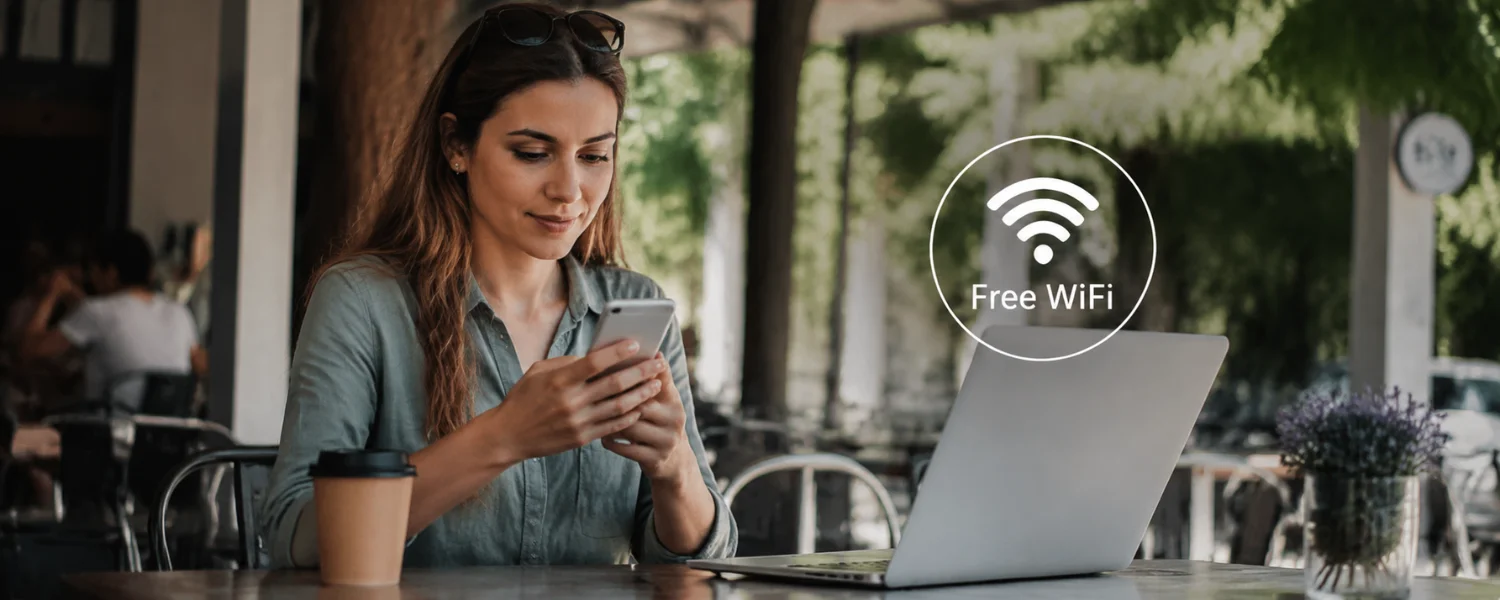
From school pickups and airport layovers to coffee shop study sessions, public Wi‑Fi keeps you and your family connected. It can also expose your data to risks like fake networks, snooping, and phishing—especially when you’re focused on travel, kids, or work. The good news: a few smart habits and quick device tweaks can make hotspots far safer without slowing you down.
Why public Wi‑Fi can put your data at risk
Open and poorly secured hotspots are easy targets for attackers who set up look‑alike “evil twin” networks, intercept traffic, or trick you with fake captive portals. Even when your apps encrypt data, weak device settings—like file sharing, auto‑join, and Bluetooth—can give nearby strangers a path in. Combine the protections below to shut the door on these tactics.
21 ways to protect yourself on public Wi‑Fi
1) Confirm the hotspot is legitimate
Before you connect, ask staff for the exact network name (SSID) and whether there’s a password. Attackers often create similar names like “Cafe_WiFi_Free.” If the captive portal looks off or asks for unusual permissions, stop and re‑check with the venue.
- Works on: All devices
- Best for: Avoiding “evil twin” traps
- Quick steps: Verify SSID/password with staff; avoid generic names (e.g., “Free_WiFi”); look for HTTPS and valid certificates on captive portals.
2) Prefer your phone’s hotspot when possible
Your personal mobile hotspot (tethering) is typically safer than open Wi‑Fi because traffic runs over your cellular network. It’s ideal for banking, shopping, or sensitive work when you’re on the go.
- Works on: iOS, Android, laptops, tablets
- Best for: Sensitive logins and payments
- Quick steps: iOS/Android Settings > Personal Hotspot (or Tethering) > enable; set a strong hotspot password.
3) Turn on HTTPS‑Only and check the padlock
Modern sites encrypt by default, but forcing HTTPS adds insurance. If a site won’t load over HTTPS, wait until you’re on a trusted network. Never enter passwords on an HTTP page.
- Works on: Chrome, Safari, Firefox, Edge
- Best for: Everyday browsing protection
- Quick steps: Browser settings > Security/Privacy > enable HTTPS‑Only (Firefox), Always use secure connections (Chrome/Edge); confirm the padlock and correct domain.
4) Use a reputable VPN on public Wi‑Fi
A quality VPN encrypts your traffic from the hotspot to the VPN server, deterring snooping and some forms of hijacking. Choose providers with audited no‑logs policies, modern protocols (WireGuard/IKEv2), and a kill switch.
- Works on: iOS, Android, Windows, macOS, ChromeOS
- Best for: High‑risk networks and travel
- Quick steps: Install a trusted VPN; enable Auto‑connect on untrusted Wi‑Fi; turn on the kill switch; sign in to the hotspot first if a captive portal blocks initial traffic, then start the VPN.
5) Turn off file and printer sharing
Public hotspots are the worst place to share folders or printers. Disable sharing to prevent drive‑by access to your files.
- Works on: Windows, macOS
- Best for: Preventing local network snooping
- Quick steps: Windows: Settings > Network & Internet > Properties > set Network profile to Public; Advanced sharing settings > Turn off network discovery and file/printer sharing. macOS: System Settings > General > Sharing > turn off File Sharing and Printer Sharing.
6) Enable and tighten your firewall
Firewalls block unsolicited connections, stopping many lateral attacks on public networks. The built‑in options are strong when configured properly.
- Works on: Windows, macOS
- Best for: Blocking inbound attacks
- Quick steps: Windows Security > Firewall & network protection > ensure it’s On for Public networks; block inbound by default. macOS: System Settings > Network > Firewall > On; Options > enable Stealth Mode; allow only needed apps.
7) Disable auto‑join and turn Wi‑Fi off when idle
Auto‑join can connect you to fake look‑alike networks without asking. Turning Wi‑Fi off when you’re not actively using it prevents background connections and saves battery.
- Works on: iOS, Android, Windows, macOS
- Best for: Avoiding accidental risky connections
- Quick steps: iOS: Wi‑Fi > tap “i” > Auto‑Join Off; Forget Network after use. Android: Wi‑Fi > saved networks > Forget. Windows/macOS: Manage known networks > Forget; toggle Wi‑Fi Off while offline.
8) Limit Bluetooth, AirDrop, and Nearby Share
Short‑range radios can leak device details or enable unwanted sharing. Disable them or restrict to contacts when you’re in public spaces.
- Works on: iOS, Android, macOS, Windows
- Best for: Reducing exposure to local attacks
- Quick steps: iOS/macOS: AirDrop > Receiving Off or Contacts Only; Bluetooth Off if not needed. Android: Nearby Share Off. Windows: Bluetooth Off and set to non‑discoverable.
9) Use a Private Wi‑Fi Address (MAC randomization)
Randomizing your device’s MAC address prevents hotspots from tracking you across visits. Most modern devices can do this per network.
- Works on: iOS, Android, Windows 10/11, macOS
- Best for: Location and behavior privacy
- Quick steps: iOS: Wi‑Fi > “i” > Private Wi‑Fi Address On. Android: Wi‑Fi > Network details > MAC type > Randomized. Windows: Settings > Network & Internet > Wi‑Fi > Manage known networks > Random hardware addresses On. macOS uses private addresses by default on many networks.
10) Disable ad‑hoc/Wi‑Fi Direct and personal sharing
Ad‑hoc mode and Wi‑Fi Direct enable device‑to‑device links that you don’t want on public networks. Keep them off unless you’re intentionally sharing.
- Works on: Windows, macOS, iOS, Android
- Best for: Preventing stealthy local connections
- Quick steps: Don’t create “computer‑to‑computer” networks; disable Wi‑Fi Direct/SmartShare features; turn off Personal Hotspot when not in use.
11) Encrypt your device and any USB drives
If a device or thumb drive is lost or stolen, encryption keeps your files protected. It’s a powerful last line of defense on the road.
- Works on: Windows (BitLocker/BitLocker To Go), macOS (FileVault), iOS/Android (on by default on modern devices), VeraCrypt for cross‑platform
- Best for: Protecting sensitive files and family documents
- Quick steps: Windows: Control Panel > BitLocker Drive Encryption; macOS: System Settings > Privacy & Security > FileVault On; Encrypt USB drives on first use where supported.
12) Keep your OS, browsers, and apps updated
Updates patch known vulnerabilities that attackers target on shared networks. Enable automatic updates so you don’t have to think about it.
- Works on: All devices
- Best for: Closing security gaps quickly
- Quick steps: Turn on auto‑updates in system and app settings; keep your browser current; restart weekly to apply patches.
13) Use two‑factor authentication and passkeys
Even if someone steals a password on public Wi‑Fi, two‑factor and passkeys stop account takeovers. Favor app‑based codes, hardware keys, or built‑in passkeys.
- Works on: Most major accounts and apps
- Best for: Email, banking, cloud storage, school portals
- Quick steps: Enable 2FA in account security settings; prefer authenticator apps or security keys; add passkeys where available.
14) Use DNS over HTTPS (DoH) or DNS over TLS (DoT)
Encrypted DNS prevents snoops from seeing which sites you look up and blocks many malicious domains. Choose a trusted resolver.
- Works on: iOS, Android, Windows, macOS, browsers
- Best for: Privacy and phishing/malware protection
- Quick steps: Use Cloudflare (1.1.1.1), Quad9 (9.9.9.9), or Google (8.8.8.8) with DoH/DoT; in Chrome/Edge/Firefox, enable “Use secure DNS.”
15) Secure your email with encryption
Ensure your email app uses SSL/TLS for IMAP/POP/SMTP. For truly confidential messages, add end‑to‑end encryption like S/MIME or PGP with recipients who support it.
- Works on: Outlook, Apple Mail, Gmail (work/school), Thunderbird
- Best for: Sensitive attachments and parent‑school or work communications
- Quick steps: Confirm “Require SSL/TLS” in account settings; for S/MIME, install certificates; in Outlook: File > Options > Trust Center > Email Security > Encrypt contents and attachments for outgoing messages.
16) Watch for phishing and fake captive portals
Attackers mimic sign‑in pages to steal logins or push malware. Real venues rarely ask for your email password, Apple ID, or bank details to use Wi‑Fi.
- Works on: All devices
- Best for: Avoiding credential theft
- Quick steps: Check the URL and certificate; beware pop‑ups asking for excessive permissions; navigate to sites by typing addresses yourself.
17) Avoid sensitive transactions on open Wi‑Fi
When possible, wait to bank, pay, or access health records until you’re on cellular or a known secure network. If you must proceed, use your banking app over a VPN and confirm HTTPS.
- Works on: All devices
- Best for: Financial and medical privacy
- Quick steps: Switch to mobile data or your own hotspot for high‑stakes logins; double‑check site/app security indicators.
18) Guard against shoulder surfing
Not all threats are digital. People nearby can watch your screen or film your keyboard. A privacy filter and smart seating go a long way.
- Works on: Laptops, tablets, phones
- Best for: Cafes, airports, trains
- Quick steps: Use a privacy screen; sit with your back to a wall; cover the keyboard for passwords; enable biometric unlock.
19) Keep your laptop close and secured
Never leave devices unattended, even for a moment. Use a cable lock where available, and enable tracking and instant‑lock features in case they walk off.
- Works on: Laptops and tablets
- Best for: Theft prevention and quick recovery
- Quick steps: Use a Kensington lock if the venue provides anchor points; enable Find My (Apple) or Find My Device (Microsoft/Google); set devices to auto‑lock quickly; label and record serial numbers.
20) Use a separate profile or guest account for hotspots
A non‑admin account with minimal startup apps reduces the blast radius if something goes wrong. Consider a dedicated browser profile for travel.
- Works on: Windows, macOS, Chrome
- Best for: Sandboxing your browsing
- Quick steps: Create a Standard (non‑admin) user for travel; use a separate browser profile without saved passwords; close all sessions and clear data after use.
21) Back up and prepare to lock or wipe remotely
If a device is lost or compromised, a recent backup and a remote‑wipe plan turn a crisis into an inconvenience. Practice once so you can act fast under stress.
- Works on: iOS, Android, Windows, macOS
- Best for: Family resilience and peace of mind
- Quick steps: Enable automatic cloud backups; test Find My/Find My Device; know how to sign out of accounts and revoke sessions; change passwords and review 2FA if something feels off.
Set up your devices before you leave home
- Update everything and restart.
- Enable device encryption and strong screen locks.
- Turn on firewall and disable file sharing by default.
- Install a trusted VPN and authenticator app; add passkeys to key accounts.
- Enable secure DNS (DoH/DoT) and HTTPS‑Only in your browser.
- Configure Private Wi‑Fi Address (MAC randomization) and disable auto‑join.
- Create a non‑admin user and separate browser profile for travel.
How to choose a safer hotspot
- Prefer password‑protected networks over completely open ones.
- Look for WPA3 or WPA2‑Enterprise and Passpoint/Hotspot 2.0 where offered (often at airports and campuses).
- Avoid ad‑hoc or peer‑to‑peer connections and generic SSIDs like “Free_WiFi.”
- Trust your instincts: if the portal or performance seems suspicious, disconnect and use your phone’s hotspot.
If you think something’s wrong, act fast
- Disconnect immediately; turn Wi‑Fi and Bluetooth off.
- On cellular or a trusted network, change passwords to accounts you used, and review 2FA settings and login history.
- Run a security scan with your device’s built‑in tools or reputable antivirus.
- Check bank and card activity; enable alerts.
- Consider restoring from a clean backup if you installed anything suspicious.
The original essentials, updated for today
The classic hotspot safeguards still matter—disable ad‑hoc mode and sharing, use a VPN, encrypt your email and files, verify the network, switch off Wi‑Fi when idle, watch for shoulder surfers, and keep your laptop in sight. Modern devices make these easier with Private Wi‑Fi Addresses, stronger built‑in firewalls, and quick toggles. Combine these with HTTPS‑Only, MFA, and secure DNS for a defense‑in‑depth approach that stands up to today’s threats.
A quick family checklist
- Kids and teens ask before joining new Wi‑Fi; verify the name with a trusted adult.
- No banking or shopping on open Wi‑Fi; use cellular or your phone’s hotspot.
- Auto‑join off; forget networks after use; Bluetooth/AirDrop/Nearby Share off in public.
- Use privacy screens in crowded spaces; lock devices when not in hand.
- Know how to find, lock, and wipe each family device; keep backups current.